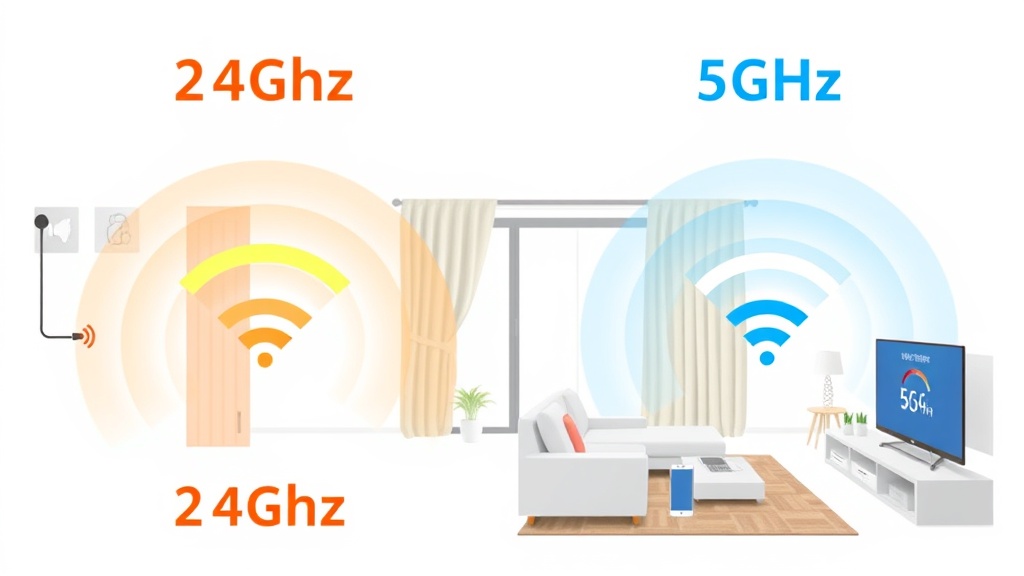
The Basics: Two Frequencies, Two Purposes
Every dual-band router broadcasts on two separate frequency ranges: 2.4GHz and 5GHz. These are not just different "channels" — they behave like entirely different networks with distinct strengths and weaknesses.
The 2.4GHz band has been around since the early days of WiFi. It travels further, penetrates walls more easily, and supports older devices. The trade-off is lower maximum speeds and higher congestion because many devices share the same narrow frequency range — including microwaves, Bluetooth headsets, and your neighbours' routers.
The 5GHz band is newer and faster. It offers wider channels and more non-overlapping frequencies, meaning less interference from neighbouring networks. The downside is shorter range: 5GHz signals degrade quickly when passing through walls or over distance.
Speed vs Range: The Trade-Off
The physics of radio waves dictates that higher frequencies carry more data but travel shorter distances. This is not a limitation of your router — it is how electromagnetic waves work.
| Feature | 2.4GHz | 5GHz |
|---|---|---|
| Max theoretical speed | ~600 Mbps | ~1.3 Gbps+ |
| Real-world speed (typical) | 50–200 Mbps | 200–800 Mbps |
| Range indoors | 35–50 metres | 15–30 metres |
| Wall penetration | Good (2–4 walls) | Moderate (1–2 walls) |
| Available channels | 3 non-overlapping | 20+ non-overlapping |
| Interference risk | High (microwaves, Bluetooth) | Low |
In a typical Singapore HDB flat, the difference is noticeable. A device in the living room connected to 5GHz might pull 400 Mbps from your router. The same device moved to the master bedroom — behind two walls — could drop to under 50 Mbps on 5GHz, while maintaining 100+ Mbps on 2.4GHz.
Which Devices Belong on Which Band?
The goal is not to pick one band and stick with it. The goal is to match each device to the band where it performs best.
Use 5GHz for:
- Laptops and desktops near the router — software updates, cloud backups, and large file transfers benefit from the higher throughput.
- Smart TVs and streaming boxes in the same room as the router — 4K streaming requires sustained bandwidth that 5GHz delivers consistently.
- Gaming consoles close to the router — lower latency and less congestion mean smoother online gameplay.
- Phones when you are in the same room as the router — video calls and fast downloads perform noticeably better.
Use 2.4GHz for:
- Smart home devices — bulbs, plugs, sensors, and cameras are typically spread throughout the home and need range over speed.
- Printers — printing does not require high bandwidth, and printers are often placed in corners or offices far from the router.
- Devices behind multiple walls — if a device is two or more walls away from your router, 2.4GHz will maintain a more stable connection.
- Outdoor use — patios, balconies, and gardens benefit from the longer range of 2.4GHz.
Why This Matters More in Singapore Homes
Singapore's housing density creates unique WiFi challenges. In an HDB block with dozens of units stacked together, every neighbour's router broadcasts on the same 2.4GHz frequencies. With only three non-overlapping channels (1, 6, and 11), congestion is inevitable.
This is why 5GHz matters so much in Singapore. The wider channel selection means you can find a clear frequency even when surrounded by dozens of neighbouring networks. If your entire home runs on 2.4GHz, you are competing with every unit above, below, and beside you for the same narrow slice of spectrum.
Conversely, HDB walls — typically concrete with steel reinforcement — block 5GHz signals aggressively. A device that works perfectly in the living room may lose its 5GHz connection entirely once it crosses into the bedroom corridor. This is where proper planning becomes essential: you need to know exactly where each band's coverage ends so you can position mesh nodes or access points accordingly.
Our guide on why expensive routers still have dead zones explores how wall materials and placement interact with both bands — understanding that article alongside this one gives you a complete picture of your home's WiFi environment.
How to Choose and Configure Your Bands
Most modern routers use a feature called "Smart Connect" or "Band Steering" that combines both bands under a single network name. The router automatically directs devices to the "best" band. This works reasonably well but lacks precision — your smart bulb might get pushed onto 5GHz where it struggles, while your laptop in the next room settles for 2.4GHz when it could use 5GHz.
Option 1: Keep Smart Connect (Easiest)
If you do not want to manage devices individually, leave band steering enabled. Most routers make decent decisions. Accept that some edge-case performance will be suboptimal.
Option 2: Separate the SSIDs (Most Control)
Rename your bands to something distinguishable — for example, "HomeWiFi-5G" and "HomeWiFi-2G." Then manually connect each device to the appropriate band. This takes time upfront but gives you full control over performance.
Option 3: Use a Mesh System with Band Management
Mesh systems like those from TP-Link Deco, Netgear Orbi, or ASUS ZenWiFi handle band steering more intelligently than standalone routers. They consider not just distance but also current network load when assigning devices to bands.
If you are deciding between a mesh system and a simple extender, our mesh vs extender comparison breaks down the real-world performance differences for Singapore homes.
See Exactly Where Each Band Reaches
Draw your floor plan in WiFi Planner and visualise 2.4GHz and 5GHz coverage separately. Know before you buy whether one router covers your home or if you need additional nodes.
Try WiFi Planner FreePlan Your Network with WiFi Planner
WiFi Planner lets you model both frequency bands against your actual floor plan. Input your wall types — drywall, concrete, brick — and the tool calculates how each band attenuates through every partition. You see two overlapping heat maps: one for 2.4GHz showing broad but slower coverage, and one for 5GHz showing faster but more limited reach.
This dual-band visualization reveals something a single speed test never can: the exact rooms where your 5GHz connection drops below usable levels and where 2.4GHz picks up the slack. It also shows you whether adding a mesh node in a specific location would extend 5GHz coverage into areas that currently rely on the slower band.
The tool is hardware-agnostic. Whether you run a basic ISP-provided router or a premium tri-band mesh system, WiFi Planner helps you place every access point for maximum dual-band efficiency.